

IMAP is the right default for almost everyone who checks email on more than one device. POP3 still works if you only ever open mail on one computer and want it stored locally, and Exchange is a better fit once your team needs shared calendars, contacts, and centralized IT control. The real tradeoff comes down to this: POP3 archives, IMAP syncs, and Exchange collaborates.
TL;DR:
- If you use multiple devices for email, IMAP is the recommended protocol as it syncs mail, folders, and read statuses across all devices.
- POP3 is suitable only if you access email on a single device and want to store messages locally without synchronization.
- Exchange is essential for teams requiring shared calendars, contacts, and centralized administration, offering instant sync on mobile and advanced management features.
- Always use encrypted ports (IMAP on 993, POP3 on 995) to secure credentials, and verify server settings before adopting any email protocol.
- Small businesses should switch from POP3 to IMAP or Exchange quickly to prevent data loss and enable efficient team collaboration.
Table of Contents
- IMAP vs POP3 vs Exchange at a Glance
- How Do POP3, IMAP, and Exchange Actually Work?
- Which Email Protocol Should You Choose?
- Security and Backup Considerations You Shouldn't Skip
- How Do I Check Which Protocol My Email Uses?
- Our Take: What Small Businesses Actually Need
- Ready to Move Off Guesswork and Onto a Real Email Setup?
- Sources
IMAP vs POP3 vs Exchange at a Glance
Here's the quick version, before we get into the mechanics.
- POP3: Downloads mail to one device, syncs nothing else, no calendar or contacts.
- IMAP: Keeps mail on the server, syncs folders and read status across every device, no built-in calendar or contacts.
- Exchange: Syncs email plus calendar and contacts through Exchange ActiveSync or native MAPI, with admin-level controls.
If you check mail on one laptop only, POP3 can work. If you use a phone, a tablet, and a computer, IMAP keeps everything lined up. If your team shares calendars, books meeting rooms, or needs an IT admin to manage mailboxes, Exchange is built for that.
How Do POP3, IMAP, and Exchange Actually Work?
POP3 is the oldest of the three, and it behaves like a mail carrier who drops your letters at your door and drives away. Your email client connects to the server, pulls every new message down to your device, and by default deletes the copy on the server. That means whatever you read on your desktop won't show up on your phone unless you dig into settings to change the delete behavior. POP3's upside is simplicity and storage control: once mail lands on your device, it's yours, offline, forever.
IMAP flips that model. The server stays the master copy, and your device just mirrors it. Microsoft explains it plainly: IMAP keeps messages on the server and syncs folder structure, read/unread status, and flags across every device you own. Delete an email on your phone, and it disappears from your laptop too. Move something into a folder at your desk, and it's already filed by the time you check your tablet at the airport. The tradeoff is that IMAP clients often cache only recent messages on mobile devices to save space, so accessing much older messages may require manual syncing of a larger date range.
Exchange, particularly through Exchange ActiveSync, does everything IMAP does and adds calendar and contact syncing with push delivery, which is why it feels instant on mobile. Mailfence's comparison notes ActiveSync's real advantage on phones: a new meeting invite lands on your device the moment it's sent, not on the next scheduled check. Exchange also supports POP3 and IMAP4 for compatibility, but businesses typically skip those in favor of native MAPI connections for features like shared mailboxes and server-side rules.
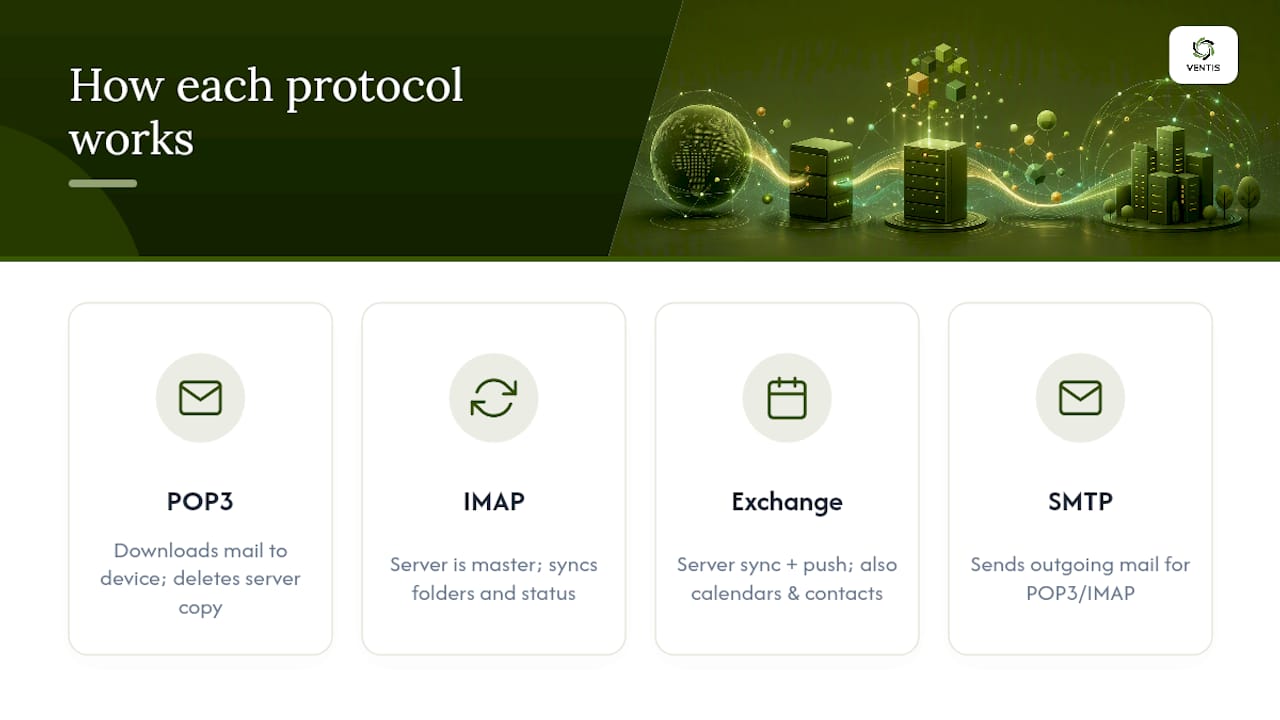
One quick note on sending mail: POP3 and IMAP both rely on a separate protocol, SMTP, to actually deliver outgoing messages. Exchange and ActiveSync handle sending internally, so there's one less thing to misconfigure.
Which Email Protocol Should You Choose?
Pick based on how you actually use email, not on what sounds more advanced.
- Count your devices. One device, no syncing needed? POP3 is fine. Two or more? IMAP or Exchange.
- Ask if you need shared calendars or contacts. If scheduling, room bookings, or shared address books matter, Exchange is the clear choice.
- Weigh your storage and admin needs. Businesses that need retention policies, eDiscovery, or centralized backups lean toward Exchange for its built-in admin controls.
When you're talking to a provider or your internal IT contact, three questions cut through the sales talk fast: Does this plan support IMAP, or am I stuck with POP3 by default? Is Exchange or a comparable ActiveSync setup available if we grow? What's the backup and retention policy on the mailbox itself?
Watch for red flags. A provider pushing POP3 without asking about your device habits is optimizing for their setup, not yours. No mention of TLS encryption is a bigger problem. And if nobody can tell you whether mailboxes are backed up server-side, that's a gap worth fixing before you sign anything.
Pro Tip: Ask your provider to show you the actual server settings screen, not just describe it. If IMAP is available, it usually says so right there next to the account type.
Security and Backup Considerations You Shouldn't Skip
Always connect using encrypted ports. IMAP should run on port 993 and POP3 on port 995. Anything on the older unencrypted ports (143 or 110) sends your password in clear text, which Cloudflare's security guidance flags as a real risk with legacy clients.
- Legacy IMAP clients can sometimes bypass multi-factor authentication entirely, so use app-specific passwords or a client that supports modern OAuth login.
- IMAP mirrors the server, it doesn't back it up. A HashBackup analysis points out that accidental deletions sync everywhere just as fast as legitimate changes do, so a separate backup plan matters for anything you can't afford to lose.
- Exchange's enterprise features, retention policies, eDiscovery, and admin-managed backups exist precisely because businesses need more than a mirror of the mailbox.
Reviewing your email encryption options before a migration saves a lot of cleanup later.
How Do I Check Which Protocol My Email Uses?
- Outlook desktop: File > Account Settings > Account Settings, then check the type listed next to your account.
- Outlook mobile: Settings > tap your account > look for "Server Settings."
- Gmail web: Settings > See all settings > Forwarding and POP/IMAP tab.
- Apple Mail: Mail > Settings > Accounts > select the account > Account Type.
- Hosting control panels: Look for hostnames like
imap.yourdomain.com(port 993) orpop.yourdomain.com(port 995); an Exchange or Microsoft 365 setup usually shows "Exchange ActiveSync" or "Outlook Anywhere" instead.
Not sure what to ask support? Try: "Can you confirm whether my account uses IMAP, POP3, or Exchange, and what the server hostname and port are?"
Our Take: What Small Businesses Actually Need
Most small businesses outgrow POP3 fast and don't realize it until someone loses an email thread that only lived on one laptop. IMAP fixes that for a solo user or a small team without much overhead. But once you've got more than a few employees coordinating meetings and sharing files, Exchange's calendar and admin controls stop being a luxury and start being the thing that keeps a Tuesday from falling apart. Ventis Consulting Group works with businesses across this exact decision every week, from simple IMAP cleanups to full Exchange migrations. If your team is still guessing which protocol you're on, that's worth a short audit before it becomes a bigger problem.
— Greg
Ready to Move Off Guesswork and Onto a Real Email Setup?
If your business is still running on whatever email setup came with your original hosting plan, you're not alone, but you're also probably paying for it in lost time and support tickets. Some IT consulting firms handle the whole process: auditing current mailboxes, recommending IMAP or Exchange based on team needs, and managing migration and backups to prevent data loss.
A first consult with Ventis Consulting Group typically starts with a quick audit of your current mail setup, a straightforward recommendation on whether Exchange or a managed IMAP configuration fits your team, and a migration plan with backup and retention built in from day one. If calendars, shared contacts, and admin oversight matter to your business, our unified communications solutions cover the Exchange side end to end, and our network as a service offering keeps the connection behind it stable. Reach out to schedule an audit and see exactly where your current setup stands.
Sources
Claims here draw on Microsoft's POP vs. IMAP documentation, Exchange Server support pages, Cloudflare's IMAP security explainer, and Mozilla's IMAP/POP3 comparison.
- What is the difference between POP and IMAP? — Microsoft Support
- What is IMAP? — Cloudflare Learning