

Native Microsoft 365 Backup gives organizations fast, in-boundary recovery for Exchange, OneDrive, and SharePoint, with pay-as-you-go storage and recovery points as frequent as every 10 minutes. For most small and mid-sized businesses, it works as the primary recovery backbone. It covers the workloads that matter most day to day, though gaps in Teams chat and other niche data mean some organizations will still need a partner solution layered on top.
TL;DR:
- Backup retention is separate from Microsoft 365's standard retention policies, impacting legal and compliance recovery requirements independently.
- Recovery points are generated every 10 minutes, with most data recoverable within days or weeks, while older data shifts to weekly snapshots.
- Native backup covers core workloads like OneDrive, SharePoint, and Exchange but does not protect Teams chat messages, requiring additional solutions.
- Recovering large datasets can reach up to 2 TB per hour under ideal conditions, but actual speeds depend on item count, concurrency, and restore priority.
- Proper setup includes defining scope, recovery windows, testing restores regularly, and considering a partner solution when additional workloads or flexibility are needed.
Table of Contents
- What Does Microsoft 365 Backup Actually Cover?
- How Do Recovery Windows and Restore Points Work?
- What Restore Speeds Should You Actually Expect?
- How Much Does Microsoft 365 Backup Cost?
- How Do You Set Up Microsoft 365 Backup?
- Native Backup or a Partner Solution: Which Do You Need?
- What SMBs Consistently Get Wrong About Backup
- Get Microsoft 365 Backup Set Up Right the First Time
- Where to Go for the Technical Details
- Sources
What Does Microsoft 365 Backup Actually Cover?
Microsoft 365 Backup protects three core workloads: OneDrive accounts, SharePoint sites, and Exchange mailboxes. Each gets full-fidelity restores, meaning you can roll back an entire mailbox, site, or account to a specific point in time. You also get item-level restores for more surgical recovery, like pulling back a single file, folder, or email without touching everything else in the account.
Teams support is where things get more nuanced. Files shared in Teams channels that live in SharePoint-backed sites are protected as part of your SharePoint backup. Chat messages and other Teams server-side artifacts are not currently protected by Microsoft 365 Backup. If your compliance obligations or business workflows depend heavily on Teams chat history, you need to account for that gap now, not after an incident.
Restore granularity varies by workload:
- OneDrive and SharePoint: file, folder, version, or full-site restores
- Exchange: individual mailbox items, folders, or entire mailbox restores
- Site-level recovery: available for scenarios where a whole SharePoint site needs to roll back, including permissions and metadata
One detail that surprises a lot of admins: backup retention runs independently of your other Microsoft 365 retention policies. A Purview retention label or litigation hold governing your tenant does not dictate how long backup data sticks around. Your backup policy controls that on its own, which matters when you are trying to reconcile legal hold requirements with your actual recovery window.
How Do Recovery Windows and Restore Points Work?
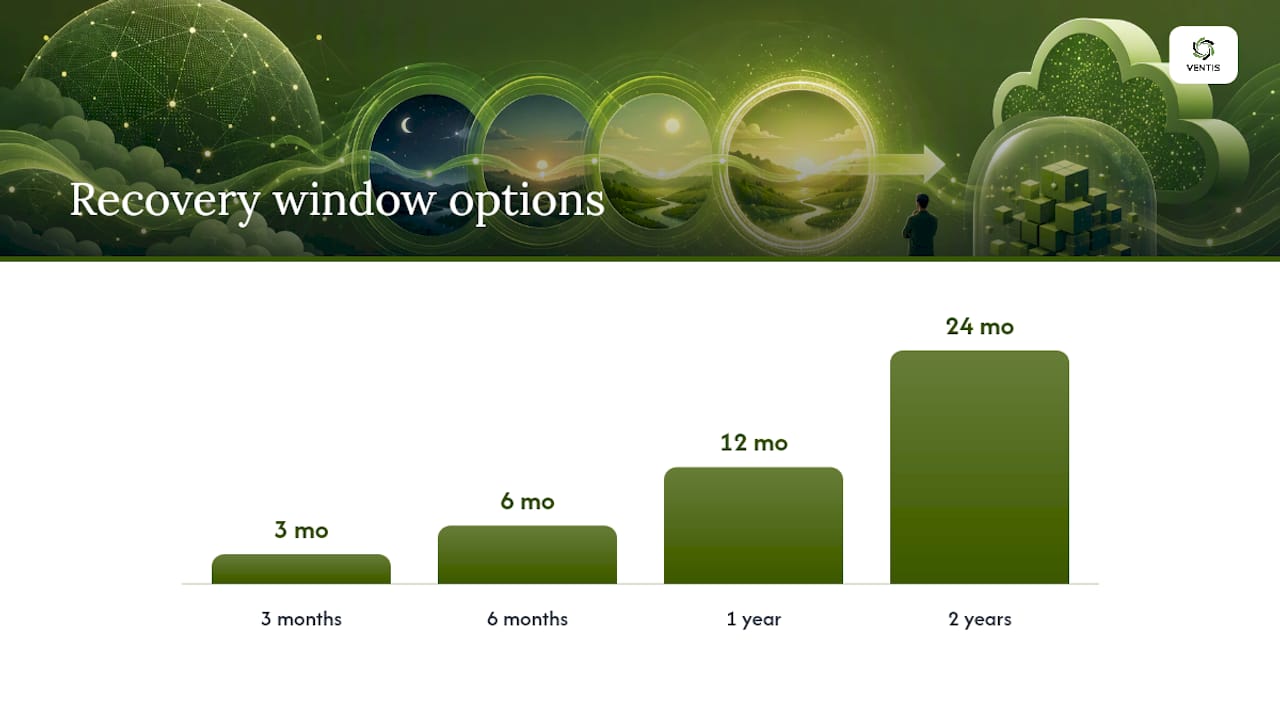
Your recovery window determines how far back you can reach when something goes wrong, and Microsoft gives you real flexibility here. You can configure a window of 3 months, 6 months, 1 year, or 2 years, and any existing policy defaults to 1 year unless you change it.
Statistic to know: Microsoft 365 Backup generates restore points every 10 minutes for recent data, covering the prior 14 days for OneDrive and SharePoint and the prior 52 weeks for Exchange. Beyond that window, the system shifts to weekly snapshots for the remainder of your retention period.
That structure has a practical logic behind it. Most recovery scenarios, whether it is an accidental deletion or a ransomware event, get caught within days or weeks, not months. That is exactly when you need the tightest restore granularity. Older data still needs protection, but weekly snapshots strike a reasonable balance between storage cost and recovery precision.
A few operational points worth flagging for your backup strategy:
- Backup policies determine which objects (accounts, sites, mailboxes) fall under protection, so scope needs deliberate planning, not a default "protect everything" assumption.
- Retention isolation means changing your Purview or eDiscovery settings will not shorten or extend your backup recovery window.
- Storage uses an append-only, immutable model with a 90-day recovery grace period after offboarding, which limits accidental or malicious deletion of backup data even when an admin account is compromised.
Setting the recovery window is not a one-time decision. Review it annually against your actual incident history and any regulatory retention requirements that apply to your industry.
What Restore Speeds Should You Actually Expect?
Recovery speed is where Microsoft 365 Backup earns its reputation, and the published numbers give you something concrete to plan around rather than vague marketing language.

Key figure: Microsoft's own performance data shows bulk restore throughput reaching up to roughly 2 TB per hour at scale under favorable conditions. That number moves depending on item counts, average site size, and how many restores you are running concurrently. A tenant with a handful of large SharePoint sites will see different throughput than one with thousands of small mailboxes.
For single-unit restores, Microsoft publishes express restore points designed specifically for faster recovery of individual mailboxes or accounts. These are the ones you lean on when a single executive's mailbox gets corrupted or a department head accidentally wipes a OneDrive folder. Full bulk restores, by contrast, are built for the scenario where you are rebuilding dozens or hundreds of accounts after a widescale event.
A few things shape real-world performance:
- Item count per mailbox or site matters more than raw storage size in many cases.
- Concurrent restore jobs compete for the same throughput ceiling, so staggering large recoveries often beats running them all at once.
- Express restore points work best for single, high-priority units where speed matters more than completeness of scope.
Treat Microsoft's published figures as planning baselines, not guarantees. When you build a recovery runbook, model your expected restore time using your actual tenant size and item counts, then pad your staffing and downtime estimates accordingly.
How Much Does Microsoft 365 Backup Cost?
Microsoft 365 Backup runs on a pay-as-you-go storage model rather than a flat subscription fee. Microsoft's published pricing example lists storage at $0.15 per GB per month, so your monthly bill scales directly with how much protected data you retain.
There is no separate backup license to buy. You need existing Exchange, SharePoint, or OneDrive licenses covering your source data, but the backup service itself bills purely on storage consumed.
A few factors drive your actual monthly cost:
- Total object count across mailboxes, sites, and accounts under protection
- The recovery window you select (2 years costs more to store than 3 months)
- Your organization's data change rate, since more frequent changes generate more restore points
Run a short pilot on a representative subset of your tenant before committing tenant-wide. That gives you a real usage number instead of a rough estimate, and Microsoft's admin center billing reports will show you exactly where storage is accumulating.
How Do You Set Up Microsoft 365 Backup?
Getting Microsoft 365 Backup running does not require a major project plan, but skipping the preflight steps is how organizations end up with false confidence in their coverage.
- Confirm source licensing. Every mailbox, OneDrive account, or SharePoint site you want protected needs an active, corresponding Microsoft 365 license.
- Enable backup in the admin center and define your protection scope, deciding whether you are protecting the entire tenant or specific groups of sites and mailboxes.
- Set your recovery window based on your compliance requirements and incident history, then assign the admins and notification recipients who will manage restore requests.
- Check Purview and retention interactions so your backup scope does not conflict with existing legal holds or eDiscovery configurations.
- Run a test restore on a low-risk mailbox or site to confirm metadata, permissions, and file versions come back intact.
For organizations onboarding many sites or mailboxes at once, scripting the rollout through PowerShell or the Graph API saves significant manual effort and creates a repeatable process for future restore verification.
Pro Tip: Run your first express restore test during business hours, not after an actual incident. You want to know exactly how long recovery takes and whether permissions come back correctly before you are under pressure to explain downtime to leadership.
Native Backup or a Partner Solution: Which Do You Need?
For most small and mid-sized businesses, native Microsoft 365 Backup covers the core recovery needs without added complexity. It keeps data inside the Microsoft 365 trust boundary, delivers fast restores, and bills simply based on storage. You are not managing a separate vendor relationship or reconciling two different admin consoles.
Partner and ISV solutions built on Microsoft 365 Backup Storage earn their place when you need broader coverage. That includes workloads like Planner, Power Platform, or Viva Engage, none of which native backup currently protects. Partners also offer bring-your-own-storage options, cross-cloud consolidation for organizations running multiple SaaS platforms, and more advanced automation workflows.
Before choosing either path, map out three things:
- Which workloads actually hold your critical business data
- What compliance or retention obligations apply beyond what native backup offers
- Whether your team wants a single console covering multiple SaaS platforms, or is fine managing Microsoft 365 separately
The most sensible procurement path for most SMBs: pilot native Microsoft 365 Backup against your core workloads first, then bring in a partner solution only to fill specific, identified gaps.
What SMBs Consistently Get Wrong About Backup
The most common mistake we see is not a missing feature. It is never testing the restore process until the day it actually matters. Plenty of organizations enable backup, assume it works, and find out during a real incident that permissions do not restore cleanly or that a critical SharePoint site was never in scope.
Incomplete protection scope is the second recurring problem. Someone assumes "backup is on" means everything is covered, when in reality only a subset of mailboxes or sites got added to the policy. And the Teams chat gap catches teams off guard more often than you would expect, especially those using Teams as their primary internal communication record.
Our recommendation: schedule quarterly restore drills, assign clear ownership for which objects are protected, and monitor your storage growth trends monthly so cost surprises don't show up on next quarter's invoice. Building a broader business continuity strategy around cybersecurity makes backup one piece of a larger resilience plan rather than a box you checked once and forgot.
— Greg
Get Microsoft 365 Backup Set Up Right the First Time
Reading through the setup checklist above is one thing. Actually configuring policies, mapping protection scope across every mailbox and site, and running restore drills on a schedule is where most internal IT teams run out of bandwidth. Ventis Consulting Group works with small and mid-sized businesses across Pittsburgh and the surrounding region to handle exactly that: policy setup, recovery window configuration, and quarterly restore testing so you are never guessing whether your backup actually works.

We take a consultative approach rather than a one-size-fits-all package. That means sizing your backup configuration to your actual data footprint and change rate, not a generic template, and being available locally when something needs troubleshooting in real time. If you are ready to get your Microsoft 365 environment properly protected and verified, visit our unified communications and IT solutions page to schedule a conversation about your current setup.
Where to Go for the Technical Details
For architecture and feature specifics, consult Microsoft's Microsoft 365 Backup overview. For pricing and billing, check the Microsoft 365 Backup product page. For best-practice runbook planning, review the adoption whitepaper, and see Microsoft's licensing optimization guidance when budgeting source licenses alongside backup storage.
Sources
- Overview of Microsoft 365 Backup
- Data Backup and Recovery | Microsoft 365 Backup
- Microsoft Announces General Availability of Microsoft 365 Backup and Microsoft 365 Backup Storage
- Microsoft 365 Backup: Best practices for data recovery and business continuity