

A Microsoft 365 migration moves mailboxes, files, and collaboration tools from wherever they live now into a Microsoft 365 tenant. Your first move should be to run Microsoft's mail migration advisor or check your FastTrack eligibility, since the right migration path depends entirely on your source environment and how many users you're moving.
TL;DR:
- Proper discovery and inventory are critical to preventing costly rework during migration, especially identifying legacy dependencies and permission structures early.
- Tools should be chosen based on your specific migration scenario, with Migration Orchestrator recommended for complex tenant-to-tenant moves and a clear understanding of each tool's scope.
- Mailbox migration methods vary from cutover for small environments to hybrid for large, with throttling and resource management being vital to meet schedules.
- Managing content migration involves protecting permissions and metadata, with pre-provisioned Teams channels and third-party tools necessary for complex SharePoint scenarios.
- Post-migration support, including support coverage and security hardening, is essential in the first week after cutover to prevent long-term issues and ensure user trust.
Table of Contents
- Which Migration Scenario Fits Your Organization?
- What Should Your Pre-Migration Discovery Checklist Include?
- Which Microsoft Migration Tools Should You Actually Use?
- How Do You Choose the Right Mailbox Migration Method?
- How Do You Migrate SharePoint, OneDrive, and Teams Content?
- What Should You Know About Tenant-to-Tenant Migrations?
- How Should You Run a Pilot and Wave Migration?
- What Happens After Cutover?
- How Does a Managed Partner Structure a Migration Engagement?
- What's the Real Lesson Behind Microsoft 365 Migrations?
- Get Migration Support Built for Your Business, Not an Enterprise Budget
- Sources
Which Migration Scenario Fits Your Organization?
Before you pick a tool, identify which scenario you're actually in. Most migrations fall into one of three buckets, and each one comes with different tooling and different risk profiles.
- External platform migration: You're moving off Google Workspace, Dropbox, or Box. Microsoft's Migration Manager handles most of these moves natively, pulling content directly into SharePoint and OneDrive.
- On-premises Exchange migration: You're running a legacy Exchange server and need to decide between cutover, staged, or hybrid coexistence. Scale is the deciding factor here. Organizations under a few hundred mailboxes usually lean cutover; larger environments need hybrid.
- Tenant-to-tenant migration: You're dealing with a merger, acquisition, or divestiture and need to move an entire tenant's workloads into a new one. This is where Migration Orchestrator earns its keep, since it coordinates mailboxes, files, and Teams together instead of forcing you to stitch tools together manually.
Get the scenario right first. Everything downstream, from timeline to budget to which admin roles you'll need, flows from this call.
What Should Your Pre-Migration Discovery Checklist Include?
Skipping discovery is the single fastest way to turn a two-week migration into a two-month fire drill. Nonstandard permissions, forgotten connectors, and stale group policies are the usual culprits behind mid-migration rework, and they're almost always things a proper inventory would have caught early.
Work through this in order:
- Identity readiness. Confirm your Microsoft Entra ID setup, decide on your Azure AD Connect sync strategy, and lock in your domain plan before you touch a single mailbox.
- Full inventory. Count mailboxes, map file stores, scope your Teams footprint, and flag every third-party app integration and privileged account that touches your current environment.
- Network checks. Confirm URL and IP allowlisting with your firewall team and model bandwidth needs against your migration timeline.
- License baseline. Tally your eligible license count. FastTrack only kicks in at or above a threshold of eligible licenses, so know where you stand before you plan around it.
- Compliance sign-off. Classify sensitive data and get stakeholder approval before any content crosses tenant boundaries.
Pro Tip: Build your inventory spreadsheet before you schedule a single migration wave. Teams that skip this step almost always rediscover a forgotten mail-enabled security group or a legacy relay connector three days into cutover, when it's far more expensive to fix.
Which Microsoft Migration Tools Should You Actually Use?
Microsoft gives you four core tools, and each one solves a different piece of the puzzle. Mixing them up wastes time.
- FastTrack provides free planning help and migration services, but only for tenants above a certain eligible license count, and it won't touch data subject to special legal or regulatory handling requirements.
- Migration Manager is your tool for moving files from file shares, Google Workspace, Dropbox, or Box into SharePoint and OneDrive, with centralized monitoring built in.
- Migration Orchestrator coordinates cross-workload tenant-to-tenant moves, syncing mailboxes, OneDrive, SharePoint, and Teams so they land together instead of drifting apart.
- Mail migration advisor asks a handful of questions about your current environment and recommends whether hybrid, staged, or cutover fits, though it requires Global admin access and an Exchange Online license to run.
The 150-license threshold matters more than most IT teams realize. Below that number, you're planning your migration without Microsoft's complimentary guidance, which is exactly the gap a managed partner or third-party tool tends to fill. Complex SharePoint architectures, large multi-tenant consolidations, and audited compliance environments almost always need something beyond the native stack.
How Do You Choose the Right Mailbox Migration Method?
Mailbox migration isn't one process. It's five distinct methods, and Microsoft's own documentation lays out when each one applies.
- Cutover: Best for smaller organizations with fewer mailboxes. It moves everyone in one shot over a weekend, but it has no coexistence period, so plan your communication window tightly.
- Staged: Used for larger on-premises Exchange environments migrating in batches over time, though it's increasingly rare outside of specific legacy scenarios.
- Hybrid (express, minimal, or full): The standard for mid-size and large organizations. Hybrid buys you coexistence, meaning mailboxes can live on-premises and in the cloud simultaneously while you migrate in controlled waves.
- IMAP and PST import: Narrow use cases. IMAP works for basic mailbox data from non-Exchange sources; PST import is mostly a cleanup tool for archived mail that didn't move with the rest of the batch.
Watch for throttling. Migration speed varies based on user throttling, service throttling, and resource-health throttling, and the effect differs by method. Build buffer time into your schedule rather than assuming a linear migration rate.
How Do You Migrate SharePoint, OneDrive, and Teams Content?
File migration has its own set of traps, mostly around permissions and metadata rather than raw data volume.
- Migration Manager covers file shares, Google Workspace, Dropbox, and Box as supported sources, moving content directly into SharePoint and OneDrive with built-in monitoring.
- Third-party tools become worth the cost when you're dealing with complex SharePoint architectures, custom metadata schemas, or hub-site structures that native tools weren't built to preserve.
- Pre-provision Teams channels and groups before migration starts. Mapping permissions after the fact creates access gaps that surface as help desk tickets in week one.
- Preserve version history and metadata deliberately. It's the detail teams lose most often, and it's the one users notice fastest once they're back in their files.
What Should You Know About Tenant-to-Tenant Migrations?
Tenant-to-tenant migrations show up almost exclusively around mergers, acquisitions, divestitures, or internal consolidations, and they carry more moving parts than any other scenario on this list.
Migration Orchestrator coordinates mailboxes, OneDrive, SharePoint, and Teams together, which matters because Teams content specifically requires specialized orchestration that individual point tools tend to miss. Before you start, line up dedicated service accounts and confirm the permissions those accounts need across both tenants.
Watch for these recurring problems:
- Duplicate UPNs between source and target tenants, which block account creation until resolved.
- External guest accounts that need remapping, not just recreating, or you'll lose their access history.
- Identity mapping errors that surface only after cutover, when users start reporting missing files instead of failed logins.
How Should You Run a Pilot and Wave Migration?
A phased rollout, running discovery, architecture, pilot, waves, cutover, stabilization, and optimization in sequence, is what most enterprise migration playbooks recommend, and for good reason. It catches problems while they're still cheap to fix.
- Pick your pilot group. A moderate number of users, ideally a mix of departments and technical comfort levels, gives you a realistic read on both technical issues and training gaps.
- Plan your waves. Line up communications, training sessions, and help desk staffing before the first wave, not during it. Define rollback criteria in advance.
- Write your cutover runbook. Nail down DNS and MX record timing, your delta sync approach, and the final validation checklist before the cutover window opens.
- Check everything in the first 48 to 72 hours. Mail flow, shared mailbox access, and mobile device connectivity are the three things that break most often and get noticed fastest.
Pro Tip: Treat your pilot as a change-management exercise, not just a technical test. The training gaps you find in a 50-user pilot are the same gaps 500 more users will hit at scale, just multiplied.
What Happens After Cutover?
The work doesn't end at cutover. It's arguably the least appreciated phase, and it's where most rollback decisions actually get made.
- Dedicate support coverage for the first five to seven days after cutover. Shared calendar permissions and external mail relay connectors are the two issues that surface most reliably during this window.
- Set governance policies for group lifecycle management, naming conventions, and clear owner assignments before sprawl sets in.
- Right-size licenses once usage patterns settle, typically after 30 to 60 days, to avoid paying for seats nobody's using.
- Harden security with conditional access policies, updated Defender configurations, and a documented backup and retention strategy that doesn't rely on Microsoft's default retention alone.
Third-party application integrations deserve a second look here too. Anything that authenticated against your old environment, from CRM connectors to document automation platforms, needs its credentials and permissions re-verified against the new tenant. Teams running document automation systems in particular should confirm those integrations survived the move before declaring the project done.
How Does a Managed Partner Structure a Migration Engagement?
Ventis Consulting Group runs migrations for small and mid-sized businesses using a consultative, phased approach: discovery and identity readiness first, then a pilot, then wave execution, then stabilization and security hardening. That structure mirrors what larger enterprises do, scaled to SMB budgets and timelines.
For a business without a dedicated migration engineer on staff, a managed engagement typically delivers a documented inventory, a tested pilot, staged cutover support, and 30 days of post-migration stabilization. Ventis Consulting Group holds a 5-star service rating built on exactly this kind of hands-on, local support.
What's the Real Lesson Behind Microsoft 365 Migrations?
Most migration advice treats tooling as the hard part. It isn't. Microsoft's native tools, FastTrack, Migration Manager, Orchestrator, and the mail migration advisor, are genuinely good at what they do. The failure point is almost always discovery, specifically the legacy dependencies nobody documented: the connector nobody remembers configuring, the security group with permissions inherited from three reorganizations ago.
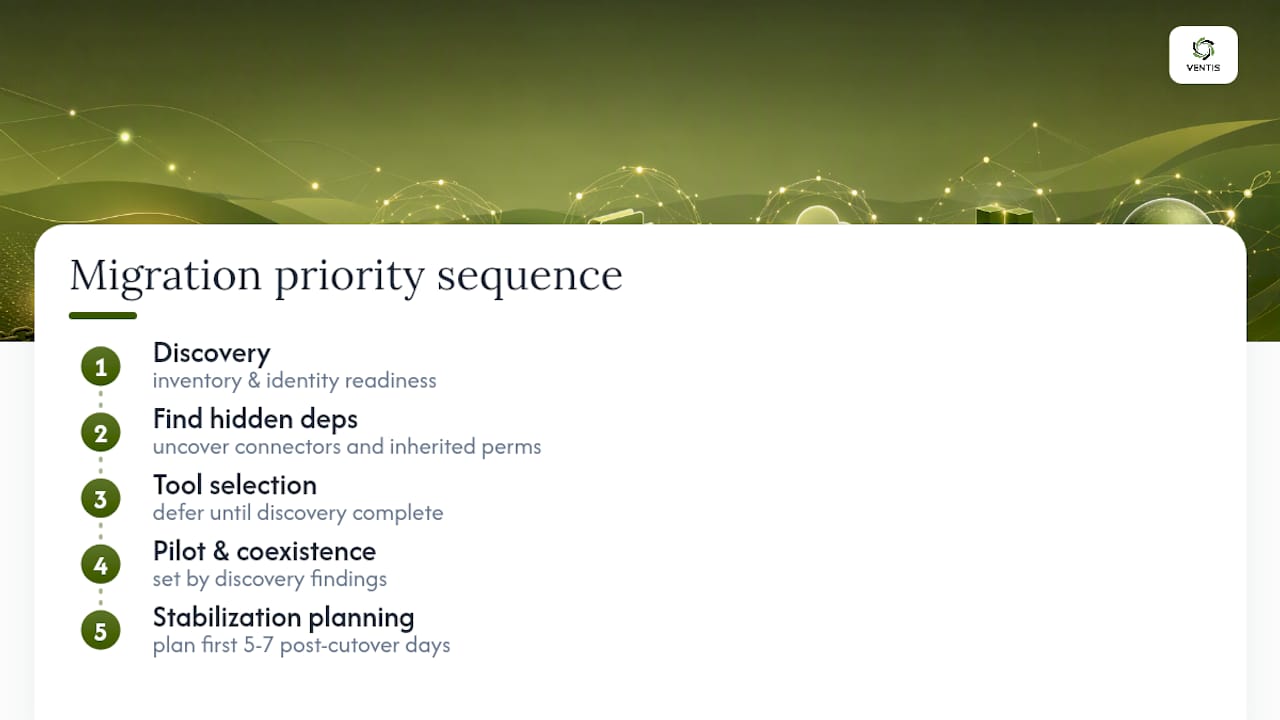
The conventional advice tells you to pick a tool and go. Better advice tells you to spend disproportionate time on inventory and identity readiness before you touch a single mailbox, because that's where the 150-license FastTrack threshold, your hybrid coexistence window, and your pilot group selection all get decided. Get discovery wrong and every tool downstream inherits that mistake.
If there's one thing worth prioritizing above all else, it's stabilization planning. Teams plan pilots and waves obsessively, then treat the week after cutover as an afterthought. That's backward. The first five to seven days post-cutover determine whether users trust the new environment or start finding workarounds, and workarounds are much harder to undo than a migration wave.
— Greg
Get Migration Support Built for Your Business, Not an Enterprise Budget
Ventis Consulting Group runs Microsoft 365 migrations for Pittsburgh-area businesses without the enterprise-scale overhead most consultancies build their pricing around, meaning you get the same phased discovery, pilot, and stabilization structure that larger organizations use, sized correctly for your team and your budget.
Beyond the migration itself, Ventis Consulting Group supports the workloads that depend on it, from unified communications platforms that need to stay running through cutover to the ongoing security hardening and license optimization that keep your new environment lean. If your organization is weighing a DIY migration against outside help, or you're already mid-planning and want a second set of eyes on your discovery checklist, reach out to Ventis Consulting Group to talk through your environment and get a clear picture of what a managed engagement would look like for your business.
Sources
- Microsoft 365 migration overview | Microsoft Learn
- Migrate your content to Microsoft 365 | Microsoft Learn