
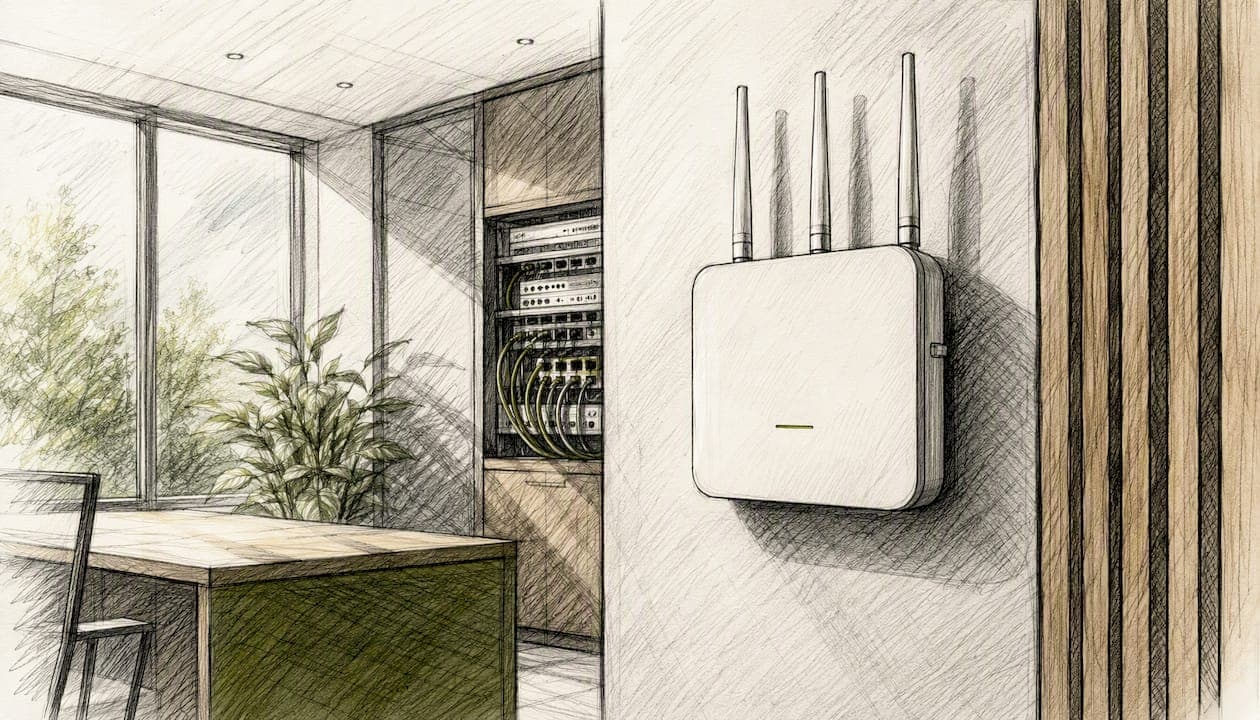
A wireless LAN, or WLAN, connects devices within a building or campus using radio signals instead of cables, typically covering a home, office, or similar space. The most common implementation is Wi-Fi, built on the IEEE 802.11 standard, which sets the technical rules devices follow to talk to each other. When you connect your laptop to an office network without plugging in a cable, you're using an access point governed by these same specifications, and the Wi-Fi Alliance is the group that certifies your devices actually work together the way the standard intends.
That's the whole concept in one breath. Everything else, from the acronyms to the security settings, is just detail on top of that foundation. Let's walk through how it functions, where it fits next to wired networks, and what you need to know to run one well.
Key Takeaways
A wireless LAN works reliably only when access point placement, band selection, and security configuration are planned together rather than treated as separate afterthoughts.
| Point | Details |
|---|---|
| WLAN definition | A WLAN connects devices by radio within a limited area, most commonly using Wi-Fi (IEEE 802.11). |
| Choose infrastructure mode | Infrastructure mode fits nearly all home and office setups; reserve mesh for hard-to-wire buildings. |
| Security comes first | Enable WPA3 or 802.1X, separate guest and IoT SSIDs, and enforce VLANs at the switch. |
| Watch for capacity, not just speed | Slow Wi-Fi is often a device-count problem, not a bandwidth problem. |
| Escalate at clear signals | Persistent dead zones, growing headcount, or regulatory requirements mean it's time for professional help. |
| Ventis Consulting Group | Offers Pittsburgh-area businesses site surveys, secure access point design, and ongoing WLAN monitoring. |
Where to Read the Primary Standards and Guides
- The IEEE 802.11 standard and amendments define the actual MAC and PHY specifications behind Wi-Fi and cover recent throughput and latency improvements.
- Cisco's explainer on wireless LANs offers a practical, vendor-neutral overview of deployment modes and security basics.
- The Wikipedia entry on wireless LAN covers components, roaming behavior, and mesh/WDS concepts in more technical depth.
- HPE's WLAN primer clarifies the relationship between Wi-Fi as a trademark and 802.11 as the underlying standard.
- Tektronix's Wi-Fi physical layer overview explains the radio-level mechanics behind 802.11 transmissions.
Table of Contents
- How a Wireless Network LAN Operates
- WLAN Deployment Modes: Which One Fits Your Setup
- IEEE 802.11 Standards and Which Wi-Fi Band to Use
- How to Secure a Wireless LAN
- Fixing Slow Wi-Fi: Throughput, Latency, and Capacity Explained
- Setting Up a Basic Wireless LAN Step by Step
- A Small-Business WLAN Deployment Checklist That Actually Holds Up
- WLAN vs LAN vs Wi-Fi: Clearing Up the Terms
- When DIY Wi-Fi Setup Stops Being Enough
- Get Your Wireless LAN Designed and Monitored by a Local Team
- Frequently Asked Questions
- Sources
How a Wireless Network LAN Operates
A WLAN runs on a handful of core parts working together. The station is any client device (laptop, phone, tablet) trying to get on the network. The access point (AP) acts as the base station that stations connect to, translating radio traffic into wired traffic and back again. Behind the AP sits the distribution system, the wired backbone that connects multiple APs together and routes traffic to the internet or an internal server, often managed by a controller or gateway.
When your laptop joins an office wireless network LAN to reach a file server, it goes through a short, predictable sequence:
- Discover: the device scans for available networks and finds the SSID it wants to join.
- Associate: the device and AP agree to connect, exchanging basic capability information.
- Authenticate: the device proves it's allowed on the network, usually with a password or a certificate-based method.
- Encrypt: once authenticated, traffic between device and AP gets encrypted so nearby devices can't read it.
- Data exchange: the device sends and receives packets, now able to reach the file server or the internet.
- Roam: if the device moves and finds a stronger signal from a different AP on the same network, it hands off the connection with minimal interruption.
A short glossary helps here, because the acronyms pile up fast:
- SSID: the network name you see when scanning for Wi-Fi.
- BSSID: the unique hardware address of a specific access point, distinguishing it from other APs broadcasting the same SSID.
- BSS (Basic Service Set): one access point and all the stations connected to it.
- ESS (Extended Service Set): multiple BSSs joined together under one SSID, letting you walk across a building without losing connection.
Underneath all of it, devices use a MAC-layer method called CSMA/CA to avoid transmission collisions, since radio is a shared medium and only one device can transmit on a given channel at a time without garbling the signal.
WLAN Deployment Modes: Which One Fits Your Setup
Not every wireless network LAN is built the same way, and picking the wrong deployment mode is a common reason small offices end up with dead zones or clunky performance.
Infrastructure mode is what most people picture: a central access point that every device connects through. It's the standard setup for homes, offices, and public hotspots because it centralizes management and security policy in one place.
Ad hoc mode (IBSS), sometimes seen today as Wi-Fi Direct, skips the access point entirely. Devices talk directly to each other, peer to peer. It's useful for quick file transfers between two laptops but doesn't scale and offers weaker security controls.
Mesh networks and WDS (Wireless Distribution System) let multiple access points link to each other wirelessly rather than through wired cabling, extending coverage into corners of a building where running Ethernet is expensive or impossible. Some mesh implementations preserve device addressing across hops, which keeps roaming smooth.
Wireless bridges connect two separate wired network segments over a radio link, often used to join a detached building to a main office network without trenching cable across a parking lot.
| Deployment Type | Best For | Scalability | Security Considerations | Common Limitations |
|---|---|---|---|---|
| Infrastructure | Homes, offices, public hotspots | High, adds APs easily | Centralized authentication and encryption | Requires AP hardware and planning |
| Ad hoc (IBSS) | Direct device-to-device transfer | Very low | Weak, minimal centralized control | Not practical beyond a few devices |
| Mesh / WDS | Buildings with costly wiring | Moderate to high | Depends on backhaul encryption | Backhaul overhead can reduce throughput |
| Wireless bridge | Linking two wired segments | Low, point-to-point | Point-to-point encryption needed | Line-of-sight and distance limits |
For nearly every small business, infrastructure mode is the right starting point. Mesh becomes worth considering once you're fighting drywall, steel studs, or a floor plan that spreads across more square footage than one AP can cover well.
IEEE 802.11 Standards and Which Wi-Fi Band to Use
The letters after "802.11" (a, b, g, n, ac, ax) mark generations of the standard, each one improving speed, range, or efficiency over the last. Wi-Fi 4 (802.11n) brought multiple-antenna technology into the mainstream. Wi-Fi 5 (802.11ac) pushed speeds higher on the 5 GHz band. Wi-Fi 6 (802.11ax) improved how APs handle many devices at once, which matters more for a busy office than raw top speed. The newest amendments, sometimes grouped under Wi-Fi 7 (802.11be, part of the IEEE's Extremely High Throughput work), add wider channels and multi-link operation that reduces latency and packet loss under demanding conditions, a real benefit for VoIP calls and industrial control systems where dropped packets aren't just annoying, they're costly.
Here's the naming quirk worth understanding: "Wi-Fi 6" is a marketing label, while "802.11ax" is the actual IEEE standard behind it. The Wi-Fi Alliance created the simpler naming scheme specifically because most buyers don't want to memorize acronym soup, but the underlying technology and its capabilities live in the IEEE specification.
| Band | Range | Capacity | Practical Tradeoff |
|---|---|---|---|
| 2.4 GHz | Longest range, penetrates walls well | Lower capacity, only 3 non-overlapping channels in most regions | Crowded by other devices (microwaves, Bluetooth), more interference |
| 5 GHz | Moderate range | Higher capacity, many more channels available | Better for busy environments, weaker wall penetration |
| 6 GHz | Shortest range | Highest capacity, least crowded currently | Best for high-density areas, requires newer Wi-Fi 6E/7 hardware |
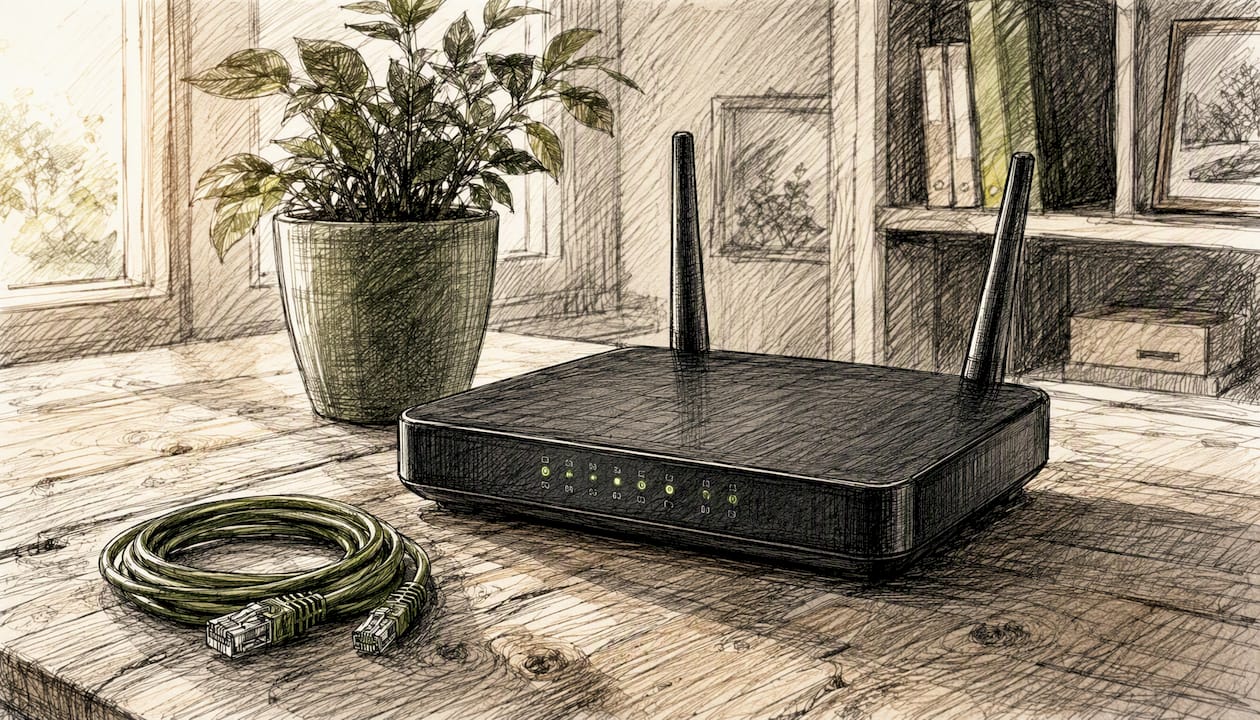
If you're setting up a small office, don't assume one band solves everything. A 2.4 GHz network still earns its place for older IoT devices and rooms far from the AP, while 5 GHz or 6 GHz should carry the load for laptops, video calls, and anything bandwidth-hungry.
How to Secure a Wireless LAN
Radio waves don't respect property lines the way cables do. A wireless network LAN broadcasts beyond your walls, which means the biggest risks are the ones a wired network simply doesn't face: open coverage bleeding into a parking lot, weak encryption that's crackable in minutes, rogue access points impersonating your network, vulnerable client devices, and guest networks with no real separation from business systems.
Here's a practical checklist to close those gaps:
- Use WPA3 wherever your hardware supports it. It's a meaningful step up from WPA2 in how it handles key exchange and resists offline password guessing.
- Enable 802.1X for business networks. This ties access to individual user credentials or certificates rather than one shared password everyone knows (including the employee who left six months ago).
- Use strong, unique pre-shared keys for smaller setups where 802.1X isn't practical. Skip the router's default password entirely.
- Separate guest traffic onto its own SSID. Visitors and contractors should never land on the same network segment as your servers.
- Segment the network with VLANs on the wired side. SSID separation alone is a soft boundary. VLAN tagging at the switch enforces it.
- Require a VPN for remote access into internal resources, especially for anyone connecting from a coffee shop or home network you don't control.
On the WPA2 versus WPA3 question specifically: WPA2 remains common and still functional, but WPA3 is the current recommended standard for new deployments. If your access points support both, there's little reason to default to the older one anymore.
Pro Tip: Most businesses stop at one guest SSID and call it done. Go a step further and run a separate SSID just for IoT devices, security cameras, smart thermostats, conference room displays, then pin each SSID to its own VLAN at the switch. If a cheap smart device gets compromised, it's isolated from the SSID your accounting software runs on, not sitting on the same broadcast domain.
Fixing Slow Wi-Fi: Throughput, Latency, and Capacity Explained
Three factors decide whether a WLAN feels fast or frustrating, and they're not the same thing.
Throughput is raw data speed, limited by your internet plan, the Wi-Fi generation your hardware supports, and how far a device sits from the AP. Latency is delay, the time a packet takes to make a round trip, and it matters most for video calls and anything real-time. Capacity (sometimes called concurrency) is how many devices an AP can serve well at once before performance for everyone starts to sag, a factor that trips up offices far more often than raw speed does.
When something feels off, a few quick diagnostics usually point to the cause. Run a speed test from a device sitting right next to the AP, then run the same test from the far corner of the office. A big gap points to range or interference, not your internet connection. If video calls stutter but downloads feel fine, that's a latency problem, often caused by too many devices competing on a congested channel. A basic channel-scanner app can show you whether your AP is sharing a channel with three neighboring networks, which is a common and completely fixable cause of Wi-Fi network setup headaches in shared office buildings.
Some signs mean it's time to bring in outside help rather than keep tinkering. Persistent dead zones that survive an AP relocation, a headcount that's outgrown what your current AP count can serve, or business-critical service level agreements riding on uptime all point toward a professional site survey rather than more guesswork with a phone app.
Setting Up a Basic Wireless LAN Step by Step
Standing up a functional wireless network LAN doesn't require an engineering degree, but skipping steps is exactly how offices end up with weak spots and security gaps later. Here's the order that works:
- Map the space. Note square footage, wall materials, and floor count. Concrete and metal studs kill signal faster than drywall.
- Count your devices and peak usage. A ten-person office with laptops behaves very differently from the same office with fifty IoT sensors added.
- Choose AP placement based on the map, not convenience. Central, elevated positions beat a closet in the corner.
- Decide your SSID strategy up front. Plan for corporate, guest, and IoT SSIDs before you start configuring, not after something breaks.
- Configure security first. Set WPA3 or WPA2, strong passwords, and guest isolation before you let a single device connect.
- Assign channels deliberately if you're running multiple APs, to avoid neighboring APs stepping on each other's signal.
A few tools make this easier than eyeballing it:
- A mobile signal-mapping app to walk the space and spot weak zones before committing to AP placement.
- A basic Wi-Fi channel scanner to see what channels neighboring networks are already using.
- A simple speed-test tool to benchmark performance at multiple points once the network is live.
After setup, test methodically. Connect a client and confirm it reaches the internet and internal resources. Run a speed test at several distances from the AP. If you've got more than one AP, walk between them and confirm the connection hands off without dropping. Finally, connect a device to the guest SSID and confirm it genuinely can't reach anything on the internal network, since a guest network that isn't actually isolated defeats the purpose of having one.
A Small-Business WLAN Deployment Checklist That Actually Holds Up
Most generic WLAN guides stop at "buy a router and set a password." That's not enough once real business data and a growing headcount are on the line, so here's the priority order we recommend to clients building out a wireless network LAN that needs to hold up under daily use.
Start with a site survey and capacity plan, not a hardware purchase. Know your square footage, device count, and growth plan for the next two years before spending a dollar on access points. Buying undersized hardware because it was cheaper up front is one of the most common and expensive mistakes small businesses make.
Secure first, monitor second, optimize performance third. That ordering matters. A blazing-fast network with no segmentation is a liability, not an asset. Get WPA3 or 802.1X in place, separate your SSIDs, and enforce VLANs before you spend a minute tuning channel width for extra speed. Our own SMB cybersecurity assessment checklist walks through the specific controls we check first on every new network.
Build operational habits around the network, not just the initial setup. That means a firmware update policy (patch on a schedule, not "whenever someone remembers"), centralized logging so you can see who's connecting and when, and a support contract that spells out response times if an AP fails. If you're running networked security cameras, treat them as their own risk category. Our breakdown of security camera cybersecurity for SMBs covers why isolating them on their own VLAN matters more than most businesses assume.
Pro Tip: Cheaper consumer-grade access points can look attractive on price, but the real cost shows up later in management time. A $150 AP with no centralized dashboard means logging into each device separately to check for firmware updates. Spend a bit more on business-class APs with unified management, and you'll spend far less time babysitting the network six months in.
For the compliance side of things, especially if your business handles regulated data, our guide on cybersecurity compliance best practices for SMBs maps directly onto the same controls your WLAN needs. Readers who want a deeper architectural view of how all these pieces fit into a larger network should also look at network topology considerations for IT professionals, which covers planning decisions that extend beyond just the wireless layer.
WLAN vs LAN vs Wi-Fi: Clearing Up the Terms
These three terms get used interchangeably, and that's where confusion creeps in.
A LAN (Local Area Network) is any network confined to a limited area, wired or wireless, connecting devices within a building or campus. A WLAN (Wireless Local Area Network) is specifically the wireless version of that, using radio instead of cables. Wi-Fi is a trademark, certified and maintained by the Wi-Fi Alliance, referring to WLANs that follow the IEEE 802.11 standard.
So the relationship is nested: Wi-Fi is a type of WLAN, and a WLAN is a type of LAN. Not every WLAN is technically "Wi-Fi" (some older or specialized radio networks use different protocols), but in everyday use, the two terms are functionally the same thing.
Here's where it gets concrete. Picture an office with a wired switch running Ethernet cable to desktop computers at each desk, that's a wired LAN. Now picture the same office with an access point mounted on the ceiling, letting laptops and phones connect without a cable, that's the WLAN, running on Wi-Fi. Wireless LAN vs wired LAN isn't really a competition; most real offices run both side by side, wired for stationary equipment like servers and desktops that benefit from stable, high-throughput connections, wireless for everything mobile.
When DIY Wi-Fi Setup Stops Being Enough
Plenty of small businesses get their first wireless network LAN running with off-the-shelf hardware and a weekend of effort, which is a reasonable starting point when the office is small and the stakes are low. The trouble starts when the business grows past what that setup was ever designed to handle. A ten-person office that hires fifteen more people, adds a dozen networked devices, and starts handling client data through cloud applications has quietly outgrown a consumer router, even if nobody notices until something breaks.
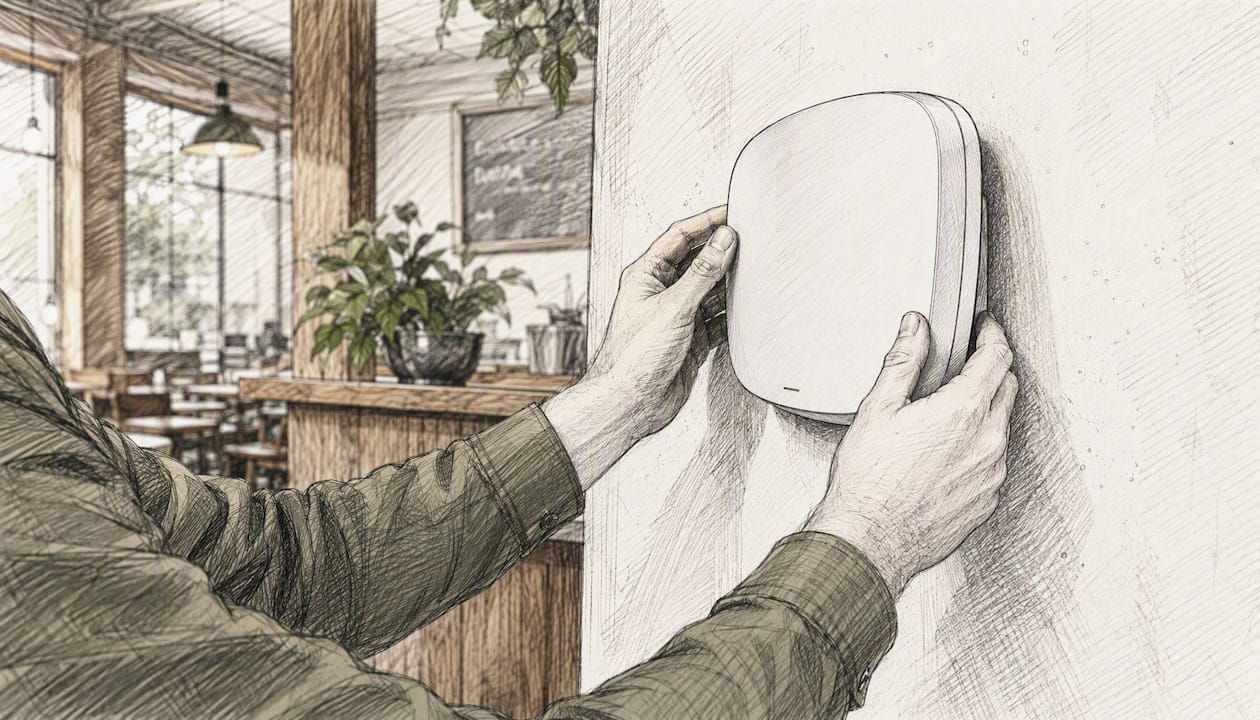
The traps we see most often aren't exotic. They're a guest network that isn't actually isolated, firmware that hasn't been updated in two years, or a single access point trying to cover a floor plan it was never sized for. None of these show up as a dramatic failure. They show up as slow Fridays, dropped video calls, and a nagging sense that something's off, which is exactly the kind of problem that's easy to ignore until it becomes a security incident.
As a Pittsburgh-based managed IT and cybersecurity provider, Ventis Consulting Group works with small and mid-sized businesses that have hit exactly this wall. The signal to call in outside help isn't complexity for its own sake, it's specific: persistent coverage gaps that survive a router swap, a need for real network segmentation across departments or compliance zones, or regulatory requirements (HIPAA, PCI, or client contracts) that demand documented, auditable network controls a consumer-grade setup simply can't provide.
Get Your Wireless LAN Designed and Monitored by a Local Team
Ventis Consulting Group gives Pittsburgh-area small businesses a faster path to a wireless network that actually holds up under daily use, without the trial-and-error of piecing it together department by department. Instead of guessing at AP placement or discovering your segmentation gaps after an incident, you get a team that's already solved these problems for other businesses your size.

Our approach starts with a site survey and capacity plan, then moves into access point design, security configuration (WPA3, VLAN segmentation, guest isolation), and ongoing monitoring and patching so firmware updates don't fall through the cracks. If your office also relies on VoIP or video conferencing, our unified communications solutions are built to work hand in hand with a properly designed wireless network, since a network that can't handle latency-sensitive traffic makes even the best phone system feel unreliable. We back it with a support contract that spells out response times, not vague promises.
If your current setup feels like it's held together with good intentions, reach out to Ventis Consulting Group for a consultation and let's map out what your network actually needs.
Frequently Asked Questions
Is a wireless LAN the same thing as Wi-Fi? Not exactly. A wireless LAN is the general category of any local network using radio instead of cables. Wi-Fi is the specific, trademarked implementation of a WLAN that follows IEEE 802.11 standards and carries Wi-Fi Alliance certification.
What's the practical difference between wireless LAN and wired LAN? A wired LAN uses Ethernet cable and generally offers more stable throughput and lower latency, while a wireless LAN trades some of that consistency for mobility and easier installation. Most offices run both.
Which Wi-Fi band should a small office use? Use 5 GHz or 6 GHz for laptops, video calls, and anything bandwidth-heavy, and keep 2.4 GHz available for older IoT devices and areas farther from the access point that need the extra range.
Should I choose WPA2 or WPA3 for my wireless network? Choose WPA3 if your access points and client devices support it. It's the current recommended standard. WPA2 still works but offers weaker protection against modern password-guessing attacks.
When does a small business need a professional site survey instead of DIY setup? Bring in professional help when you see persistent dead zones that survive hardware changes, a device count that's outgrown your current access points, or regulatory requirements that demand documented, auditable network controls.